How to Add a Signature in Gmail (With Logo, Links and HTML)
Add a signature in Gmail in two minutes, then get the details right: a logo that loads, one signature per address, the phone apps, and an HTML template.
Until this month I didn't have a Gmail signature at all. In October 2026 I finally made one: a photo, one line about what I do, a booking button and two links. Gmail handles all of that fine, as long as you know where a few settings hide.
The quick steps are right below. After that I cover the parts Google's help page skims over: images that don't break, a different signature for each address you send from (I send from my Gmail and from contact@parish.cv, which goes out through Resend), the phone apps, and how to paste in a proper HTML signature.
Steps and screenshots checked in Gmail on the web in October 2026.
On this page
- Quick steps
- Step by step, with screenshots
- Add a logo or photo that doesn't break
- A different signature for each address
- Signatures in the Gmail app
- Paste a custom HTML signature
- Troubleshooting
- FAQ
How to add a signature in Gmail
On a computer:
- Open Gmail, click the gear icon at the top right, then See all settings.
- On the General tab, scroll down to Signature and click Create new.
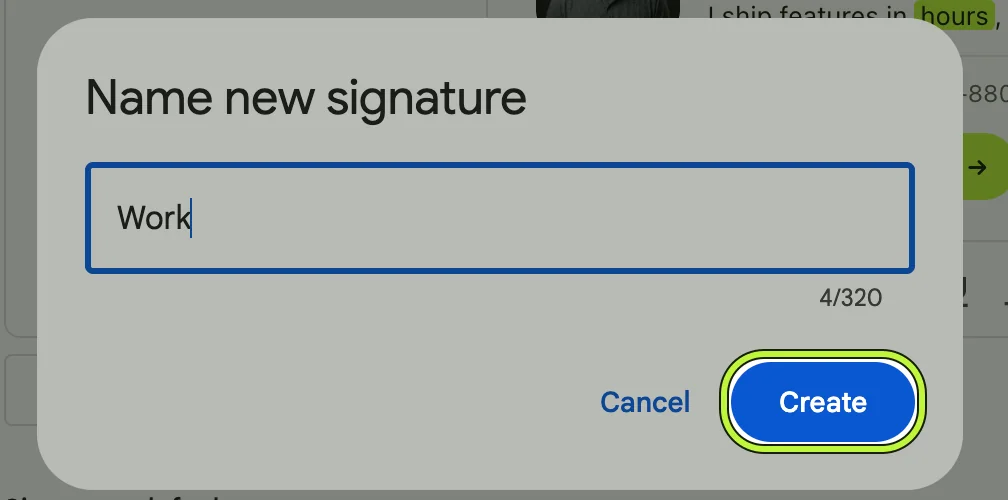
- Name the signature and click Create. Only you see the name.
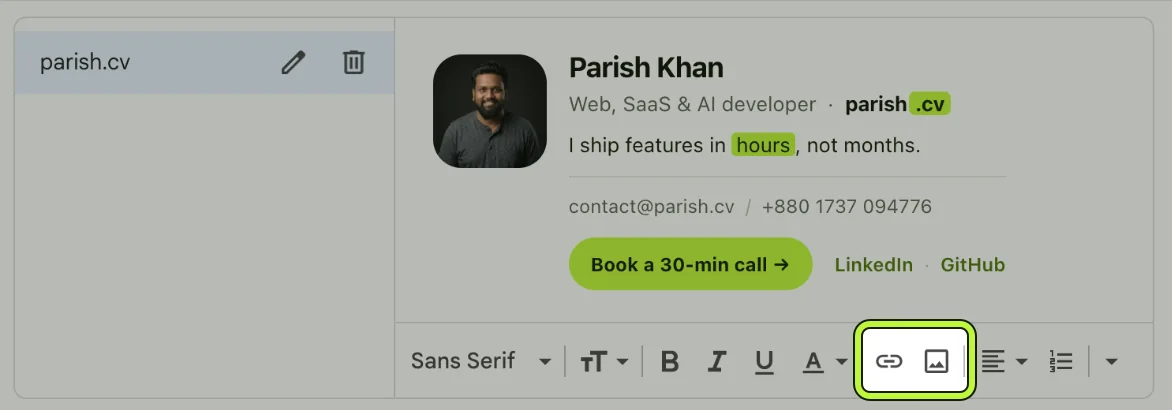
- Type your signature in the box. The toolbar handles bold text, links and images.
- Under Signature defaults, pick it for For new emails use and On reply/forward use.
- Scroll to the very bottom of the page and click Save Changes.
That's it. Every new email now starts with your signature. Here are the same steps on real Gmail screens, 18 seconds, no sound:
Made from screenshots of my Gmail settings in October 2026, with my personal address swapped for a placeholder.
Step by step, with screenshots
1. Open all settings
Click the gear icon in the top right corner of Gmail. That opens Quick settings, a short panel for things like density and theme. Signatures aren't in it, so click See all settings at the top of the panel.
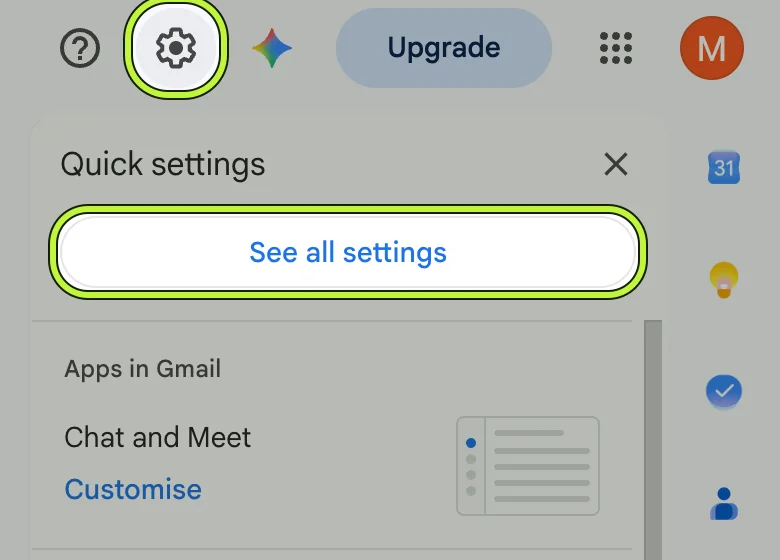
This only works in Gmail on a computer, in any browser. The phone apps have their own signature setting, which I cover further down.
2. Click Create new in the Signature section
You land on the General tab. Scroll about two thirds of the way down. The Signature section sits between "Importance signals for ads" and "Personal level indicators". If you've never made one, it says "No signatures". Click Create new.
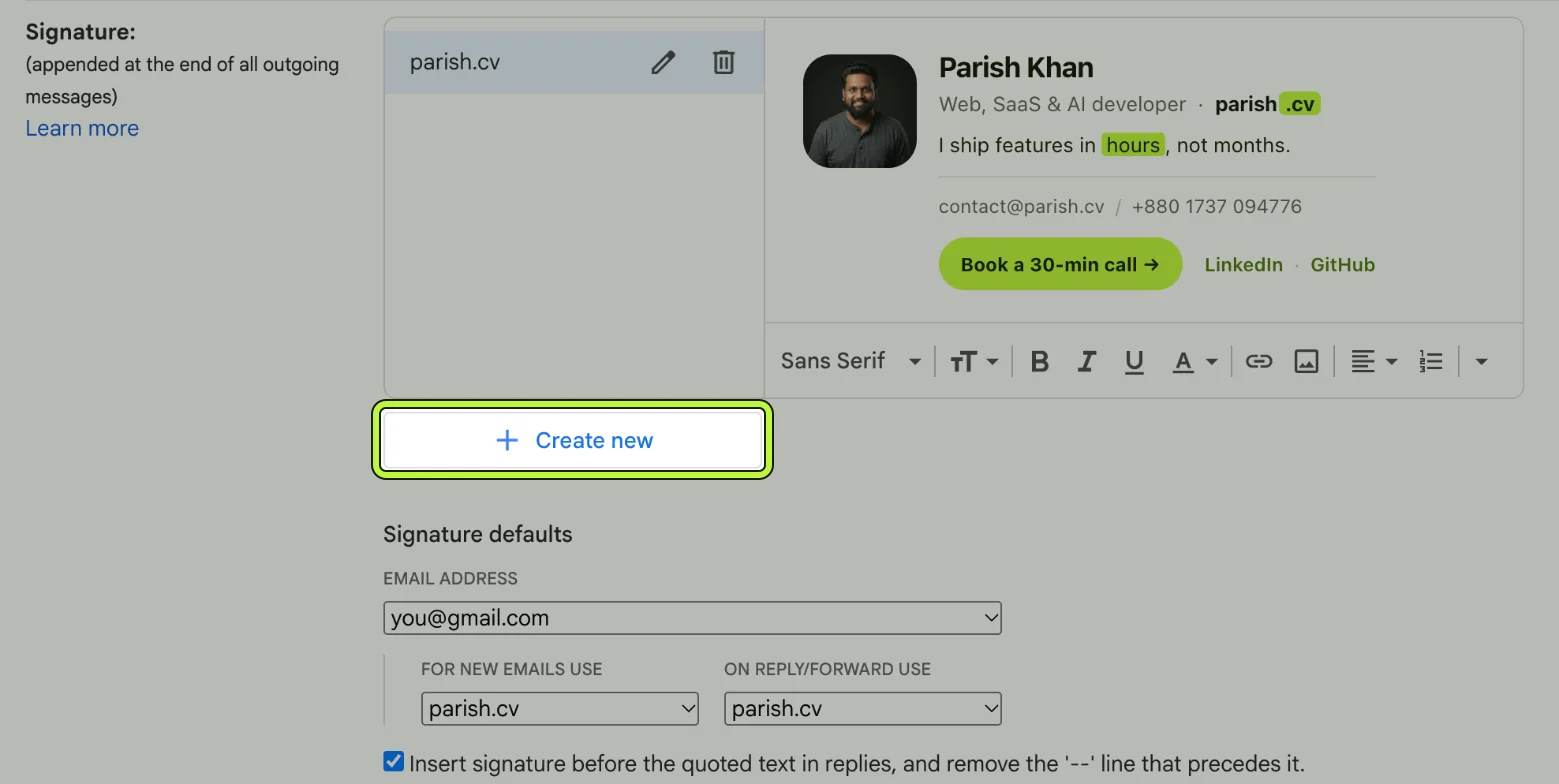
The screenshot shows mine already set up, which is what you'll see when you come back to edit. Click a signature's name on the left to edit it, the pencil to rename it, and the bin to delete it.
3. Name it
Gmail asks for a name. Recipients never see it. It's only there so you can tell your signatures apart in menus. Mine is called "parish.cv". "Work" or "Personal" is fine.
4. Write or paste your signature
Click into the box on the right and type. The toolbar under it does font, size, bold, color, alignment and lists, plus the two buttons that matter most here: link and insert image.
A few things worth knowing at this step:
- To make something clickable, select the text and press the link button (or Ctrl+K, Cmd+K on a Mac).
- Gmail caps a signature at 10,000 characters, and Google says images count toward that. Mine has a photo, a button and seven links (counting the email and phone), and it comes to about 2,500 characters of HTML. The limit only bites if you paste in something heavy.
- Three to five short lines is plenty. Your signature repeats in every reply of a long thread.
Want a layout the toolbar can't do, like a photo beside your name or a colored button? Build it in HTML and paste it. That's covered below.
5. Set it as the default
Below the box, Signature defaults decides when Gmail adds the signature by itself:
- For new emails use: the signature for emails you start.
- On reply/forward use: the one for replies and forwards. Some people choose a shorter signature here, or none at all.
- Email address: this only appears if you send from more than one address. Each address gets its own pair of defaults (more on that below).
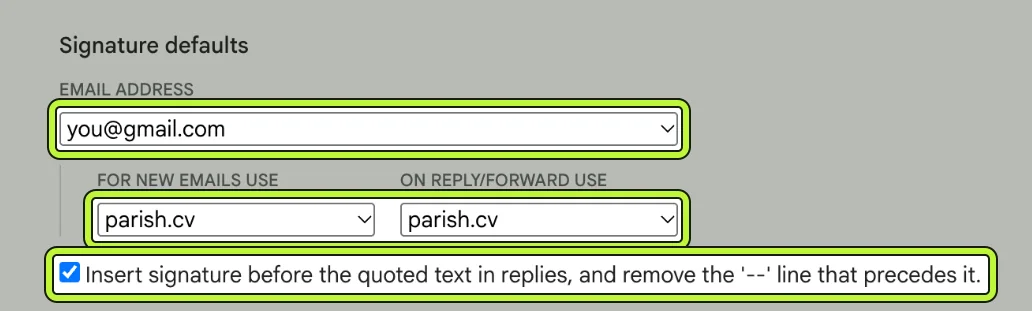
Also tick Insert signature before the quoted text in replies, and remove the '--' line that precedes it. Without it, your signature lands under the whole quoted conversation in replies, with a "--" line above it. Neither helps anyone.
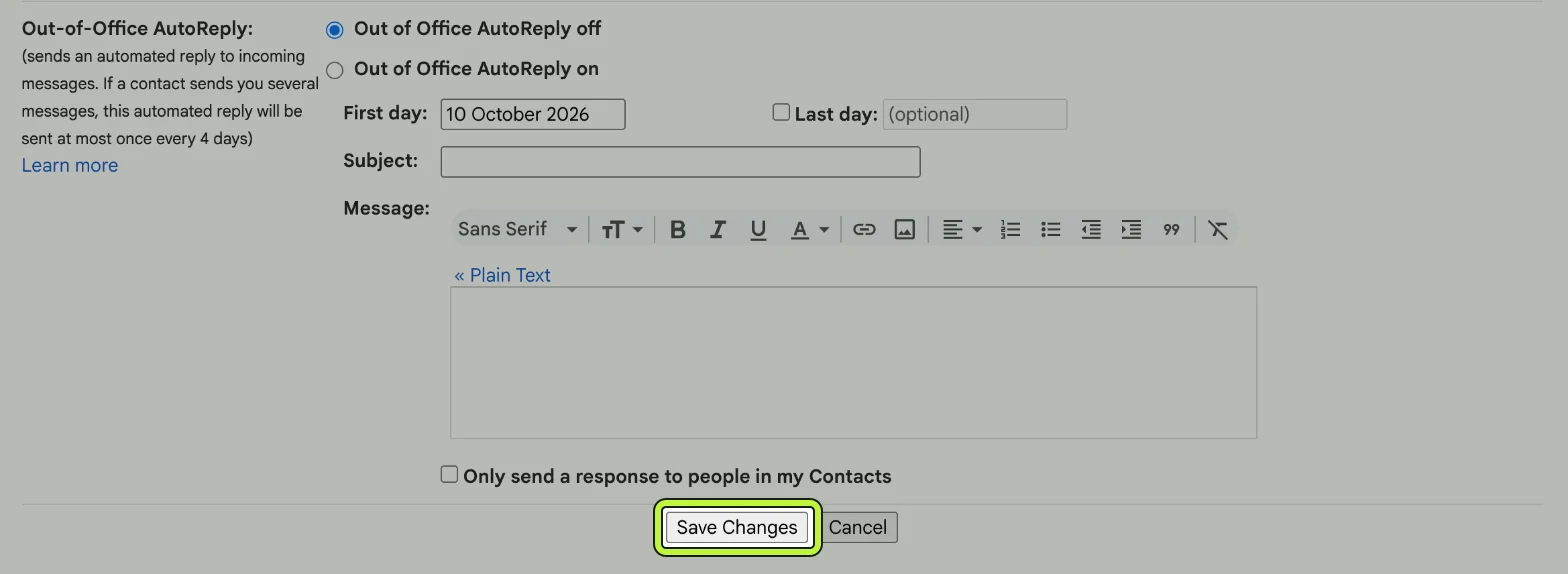
6. Click Save Changes
The Save Changes button is at the very bottom of the General tab, under the Out-of-Office AutoReply settings. Nothing you did above is kept until you click it.
7. Check it in a new email
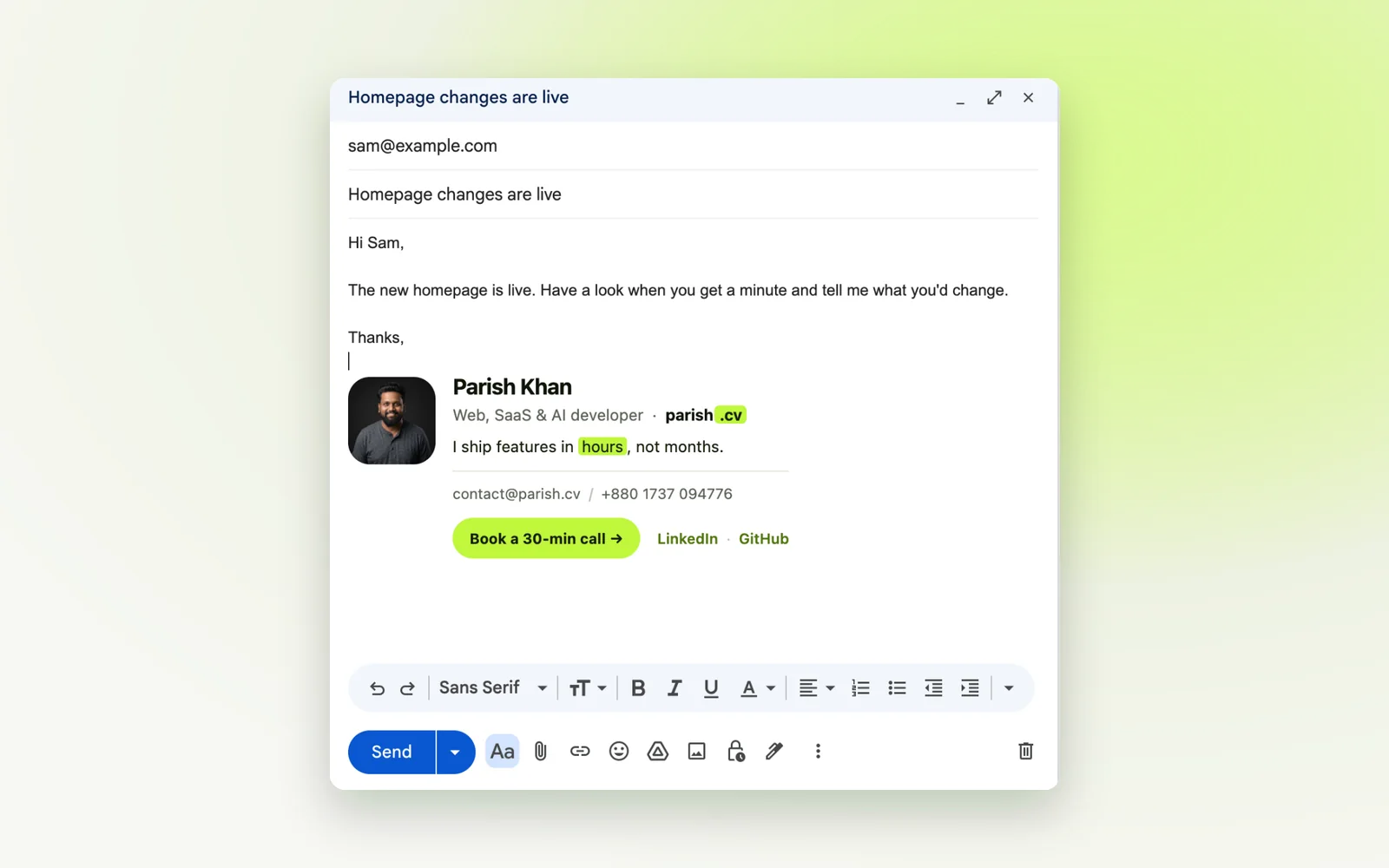
Click Compose. Your signature is already in the new message, with a blank line above it for you to type in.
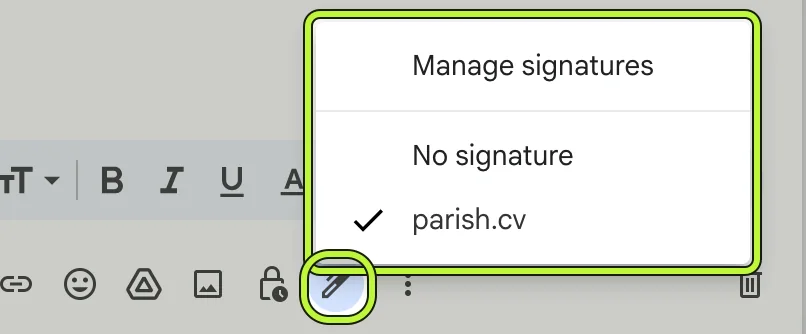
To swap it or drop it for one email, click the pen icon (Insert signature) at the bottom of the compose window. You get your signatures, No signature, and Manage signatures, a shortcut back to the settings page.
Add a logo or photo that doesn't break
Images are where signatures usually break. The picture looks perfect in your settings, then arrives as a broken icon or a question mark on the other end.
Click the image button in the signature toolbar. On my account in October 2026, the Add an image dialog offered two sources: Web Address (URL) and Google Drive. Google's troubleshooting page also mentions an Upload option, so you may see three.
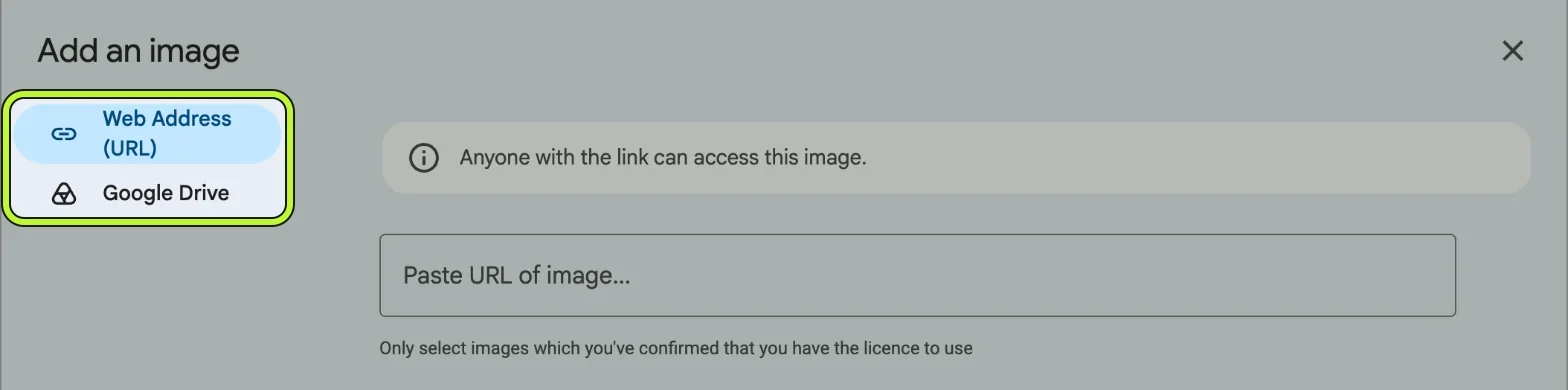
How I'd choose:
- Web Address (URL) is the most reliable. Paste a direct link to a PNG or JPG that anyone can open without signing in. Mine is
https://parish.cv/avatar.png. A share link that opens a web page showing the picture won't work. The link has to point at the image file itself. - Google Drive works if the file is shared publicly, so "Anyone with the link" can view it. If it isn't, the people you email see a broken image. Delete the file later and it disappears from your signature too.
On size and format:
- For a logo, Google recommends 70 to 100 pixels tall and 300 to 400 pixels wide, and no more than 100 tall or 1,000 wide. After inserting, you can click the image and pick Small, Medium, Large or Original.
- For a photo or a square logo, use a file about twice the size it shows at (144 px for a 72 px photo) so it stays sharp on high-resolution screens. Mine is a 512 px PNG shown at 72 px, which is far more than it needs. Do as I say, not as I do.
- Stick to PNG or JPG. Gmail now shows SVG by converting it to PNG, but plenty of other mail apps still don't show SVG at all.
Use a different signature for each email address
I send from two addresses in one Gmail account: my personal Gmail and contact@parish.cv. The second is added under Settings > Accounts and Import > Send mail as, and actually leaves through Resend's SMTP server. (Here's how I set that up for free.)
Once you have more than one address under Send mail as, an Email address dropdown appears above the defaults. Choose an address, set its two defaults, switch the dropdown to the next address, set those, then click Save Changes once at the end.
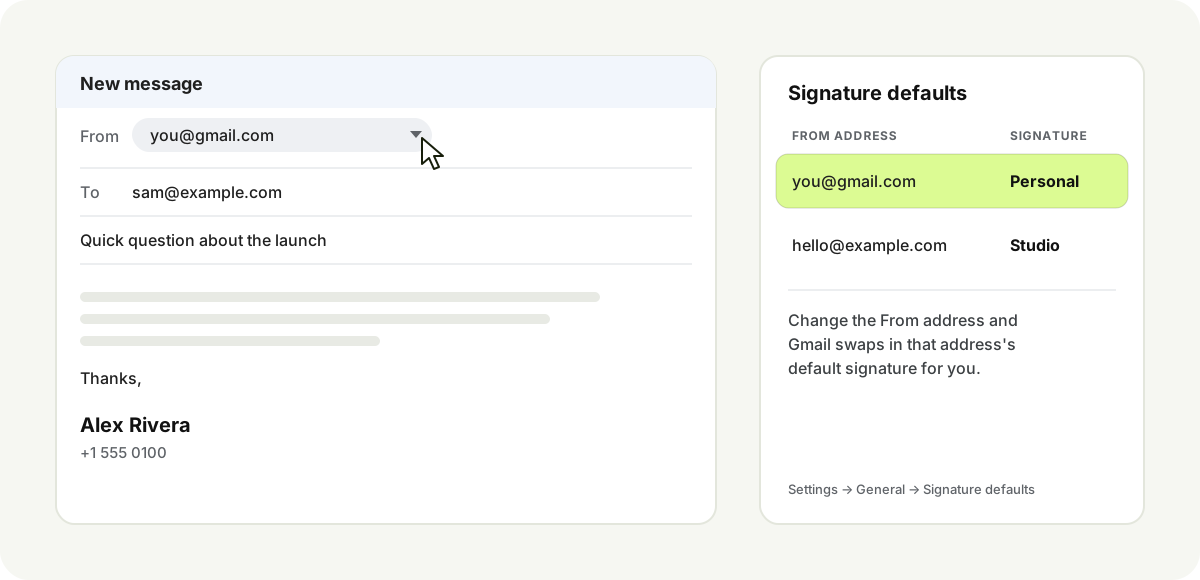
Each From address gets its own default. Change the address while writing and the signature follows.
When you write an email, changing the From address swaps in that address's default signature. I use the same signature on both of my addresses, and switching between them leaves exactly one copy in the email, so you don't end up with two signatures stacked on top of each other.
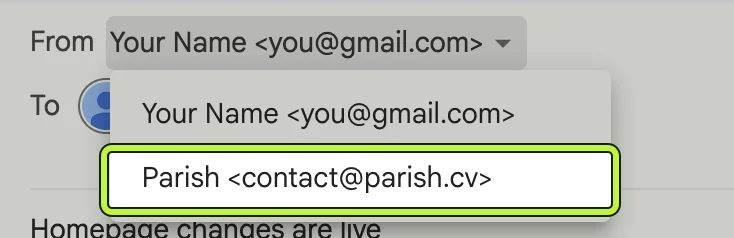
Two more settings help here:
- In Accounts and Import, set When replying to a message to Reply from the same address to which the message was sent. Replies then go out from the right address, with that address's signature.
- If you send through another provider's SMTP server like I do, the signature still goes out. Gmail adds it to the message in the compose window, before anything is sent.
One thing a signature can't fix: if mail from your own domain lands in spam, the cause is usually missing or misaligned SPF, DKIM and DMARC records. That's a DNS job, and one I do for clients.
Add a signature in the Gmail app
The Android and iPhone apps don't use the settings page. They have their own, much simpler signature.
Android: open the Gmail app, tap the menu at the top left, scroll down and tap Settings, choose your account, tap Mobile signature, type it, and tap OK.
iPhone and iPad: tap the menu at the top left, then Settings. Under "Compose and Reply", tap Signature settings, turn on Mobile Signature, type it, and tap the back arrow to save. If you have several accounts in the app, do it for each one.
Google's help page has two details that are easy to miss:
- A mobile signature only applies to emails you send from the app.
- If you don't set one, new messages from the app use the signature from your computer settings.
The app's signature box is plain text, so there's nowhere to add an image or a button. If you've built a nice signature on desktop, the simplest option is to leave Mobile signature off and let the app use that one. Send yourself a test from your phone to see how it arrives.
Paste a custom HTML signature
Gmail's editor is fine for text and a logo. It can't put a photo beside your name, draw a button, or control spacing. For that, write the signature in HTML and paste it in. That's how I made mine.
If you'd rather fill in a form than write HTML, I also built a free email signature generator on floi, my site of in-browser tools. Add your details, pick one of its 16 layouts, and its Copy signature button gives you a formatted version to paste into Gmail's signature box, the same way as the steps below. There's no sign-up, and it doesn't host your photo, so you'll still need a public image link like the ones in the image section.
Email HTML follows older, stricter rules than a web page:
- Use tables for layout. Flexbox and grid aren't reliable in email.
- Put every style on the element itself. Gmail's signature editor keeps inline styles. Don't count on classes or style blocks.
- Link images by full https URL, and give them a width and height.
- Use common fonts like Arial, Helvetica or Georgia. Gmail on the web won't load a custom web font.
- Stay under 10,000 characters, Gmail's limit.
Here's a template with the same structure as mine: photo or logo on the left, details on the right, one button. Replace the example details with yours.
<table cellpadding="0" cellspacing="0" border="0" style="border-collapse:collapse;font-family:Arial,Helvetica,sans-serif;color:#202124;">
<tr>
<td valign="top" style="padding:3px 14px 0 0;">
<a href="https://example.com" style="text-decoration:none;">
<img src="https://example.com/images/signature-photo.png" alt="Alex Rivera" width="72" height="72" style="display:block;width:72px;height:72px;border:0;border-radius:16px;">
</a>
</td>
<td valign="top">
<div style="font-size:17px;line-height:22px;font-weight:bold;color:#111111;">Alex Rivera</div>
<div style="font-size:13px;line-height:20px;color:#5f6368;">Product designer at <a href="https://example.com" style="color:#111111;font-weight:bold;text-decoration:none;">Example Studio</a></div>
<div style="font-size:12px;line-height:18px;color:#5f6368;padding-top:8px;">
<a href="mailto:alex@example.com" style="color:#5f6368;text-decoration:none;">alex@example.com</a> / <a href="tel:+15550100" style="color:#5f6368;text-decoration:none;">+1 555 0100</a>
</div>
<table cellpadding="0" cellspacing="0" border="0" style="border-collapse:collapse;margin-top:10px;">
<tr>
<td style="background-color:#111111;border-radius:999px;padding:7px 14px;">
<a href="https://example.com/book" style="font-size:12px;line-height:16px;font-weight:bold;color:#ffffff;text-decoration:none;">Book a call →</a>
</td>
<td style="padding-left:12px;font-size:12px;line-height:16px;">
<a href="https://www.linkedin.com/in/your-handle/" style="color:#1a73e8;text-decoration:none;">LinkedIn</a>
</td>
</tr>
</table>
</td>
</tr>
</table>
To get it into Gmail:
- Save the code as
signature.htmland open the file in your browser. - Press Ctrl+A to select everything on the page, then Ctrl+C to copy it (Cmd+A and Cmd+C on a Mac).
- In Gmail's signature box, select anything already there and paste with Ctrl+V.
- Set your defaults and click Save Changes.
Copy the page as it looks in the browser, not the code. Paste the code itself and you get a signature full of HTML tags. Pasted into Gmail in October 2026, this template kept its table layout, the rounded image and the button. (The logo here is a placeholder.)
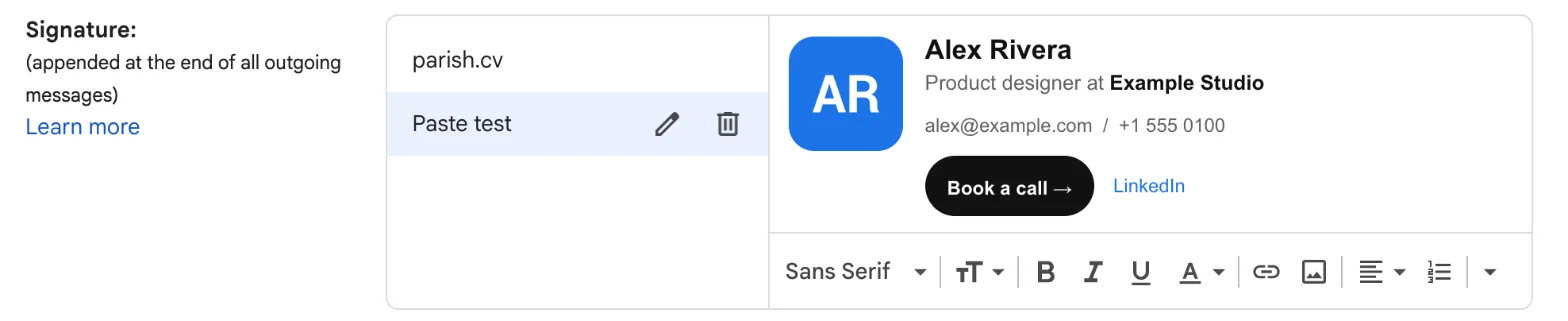
For developers: the console route
If you live in DevTools, you can push the HTML straight into the signature box instead. A plain editor.innerHTML = html won't do it: Gmail throws This document requires 'TrustedHTML' assignment, because the settings page enforces Trusted Types. Create a policy first:
// Gmail > Settings > General, with your signature selected on the left.
// Chrome asks you to type "allow pasting" before it lets you paste here.
const html = `PASTE YOUR SIGNATURE HTML HERE`;
const policy = trustedTypes.createPolicy('signature-paste', { createHTML: (s) => s });
const editor = document.querySelector('div[contenteditable="true"][aria-label="Signature"]');
editor.innerHTML = policy.createHTML(html);
editor.dispatchEvent(new Event('input', { bubbles: true }));
// Now scroll to the bottom and click Save Changes.
A couple of warnings. Only run code in the console that you've read and understand, because it runs with full access to your mailbox. And that selector is what Gmail used in October 2026. Google can rename it whenever it likes.
What I put in mine
Mine has a photo, my name, one line on what I do with a link to parish.cv, the line from my homepage ("I ship features in hours, not months"), my email and phone number, a Book a 30-min call button, and links to LinkedIn and GitHub.
What I left out: a row of every social network I've ever joined, an inspirational quote, a legal disclaimer, and a banner. In a long thread your signature shows up in every reply, so each extra line gets read (or scrolled past) many times.
If you only add three things, make them your name, what you do, and one way to reach you. The rest is optional.
Test it before you rely on it
Send one email to yourself and one to an address on another service, like Outlook or iCloud. Then check that:
- the image loads, rather than a broken icon or an empty box;
- every link goes where it should, including the email and phone links;
- it reads well on your phone, in light and dark mode;
- in a reply, the signature sits under your reply, not under the old conversation.
If your signature seems to vanish in a long thread, it hasn't. Gmail hides repeated content behind a small "..." button. Click it (Show trimmed content) and your signature is there.
Troubleshooting
My signature doesn't appear in new emails
Check Signature defaults. For new emails use may still say No signature, or it's set for a different From address than the one you're writing from. Then make sure you clicked Save Changes. On a phone, remember that a mobile signature replaces the desktop one.
The image shows as a broken icon
The image isn't public. For a Drive file, set sharing to "Anyone with the link". For a URL, open it in a private browser window. If it asks you to sign in, or shows a page instead of only the image, use a different link. Then delete the image from your signature and add it again.
My signature shows up below the quoted text in replies
Tick Insert signature before the quoted text in replies under Signature defaults, then save.
There's a "--" line above my signature
Same checkbox. It removes the line as well.
Gmail says my signature is too long
The limit is 10,000 characters, and images count. Link to a hosted image instead of pasting one in, and clear stray formatting with the Remove formatting button in the toolbar.
The formatting looks wrong after pasting
Text copied from Word or Google Docs brings hidden styles with it. Select the signature, use Remove formatting, and paste from a plain HTML page instead.
FAQ
How do I add a signature to every email automatically?
Set it under Signature defaults for both For new emails use and On reply/forward use, then click Save Changes. Gmail adds it to every new email, reply and forward from that address.
Can I have more than one signature in Gmail?
Yes. Click Create new for each one. Then choose defaults per address, and switch signatures for a single email with the pen icon in the compose window.
How do I add my company logo to my Gmail signature?
Click the image button in the signature box and paste a public URL for the logo, or pick it from Google Drive with sharing set to public. Keep it around 70 to 100 pixels tall. There's more in the image section.
How do I add a handwritten signature?
Sign on plain white paper, photograph or scan it, crop it tight, and save it as a PNG with a transparent background. Host it somewhere public and add it like a logo. A cryptographic "digital signature" (S/MIME) is something else, and it's only available on some paid Google Workspace plans.
Can a Google Workspace admin set one signature for everyone?
Not as an editable signature in the Admin console. Admins can add a footer to all outgoing mail with the Append footer setting, or set the same signature for every user through the Gmail API, as Google's Workspace guide explains. Larger teams often use a signature app from the Workspace Marketplace.