Submagic free alternative: Karaoke Captions compared
Looking for a Submagic free alternative? Compare Karaoke Captions, CapCut, VEED and Captions on pricing, free exports and word-by-word captions.
Your video is edited. The audio is ready. All it needs is captions that light up as you speak. Does that last step really need another monthly subscription?
I make Karaoke Captions, a browser tool built around that job. This is my comparison of it with Submagic, CapCut, VEED and Captions: what you can export for free, what the paid plans cost, and when a bigger editor earns its price.
Prices and interfaces checked on October 11, 2026. The screenshots use a synthetic English test clip exported in desktop Chrome with the maker's account and the free Classic style. Competitors' claims were checked against their own sites.
On this page
- The quick answer
- Caption tools and prices compared
- What makes Karaoke Captions good value
- How to make word-by-word captions
- Which competitor should you choose?
- Questions before you switch
A Submagic free alternative for the caption step
Karaoke Captions is my pick if you want animated captions on an already edited video, with a free MP4 export and no watermark. The free plan includes the editable Classic and Lyrics styles, plus SRT and VTT downloads. You can use it without an account, and the published plan has no video or minute quota. Your device still has to handle the file. See what the free tool includes.
Here is the decision I would make:
- I just need captions: start with Karaoke Captions Free.
- I want more caption looks: preview the Pro styles on my own clip before paying.
- I need cuts, B-roll, generated footage or a full editing timeline: compare the broader editors below.
The useful question is how much of the editing you need the app to do. A tool that finishes your existing video has a different job from one that helps create the whole thing.
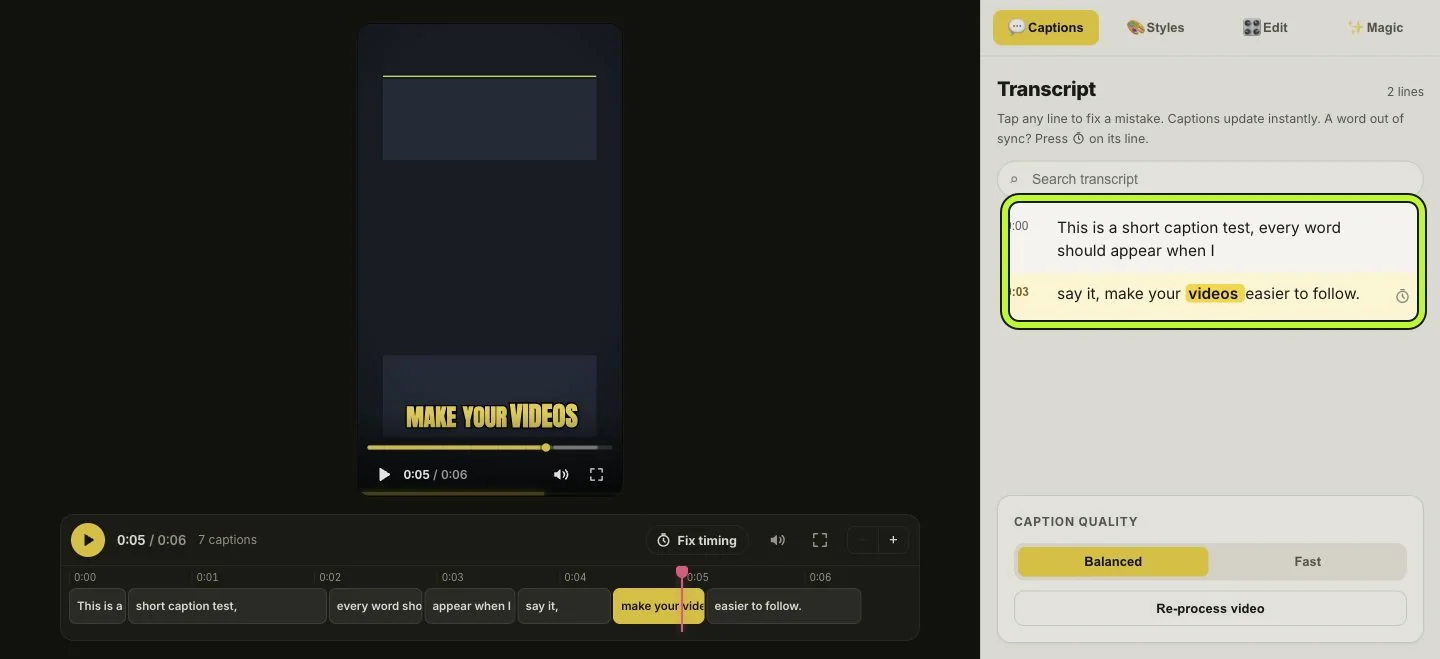
The test clip after transcription, with the transcript and caption timeline visible. The blank video background is part of the synthetic sample.
Karaoke Captions vs Submagic, CapCut, VEED and Captions
These are selected plans, checked on the date above. Prices are in USD before any checkout taxes. An annual plan's monthly equivalent is not a month-to-month subscription.
| Tool and plan | Price checked | Scope or limit to know | Best reason to choose it |
|---|---|---|---|
| Karaoke Captions Free | $0 | Classic and Lyrics; no published video or minute quota; device limits apply | Captioned MP4 without a watermark |
| Karaoke Captions Pro | $19/year launch offer; $3.99/month; $59 lifetime | Extra styles and Magic tools; annual and monthly plans renew | More caption styling at a low price |
| Submagic Starter | $19/member/month, or $144/year with annual billing | 15 videos per member per month; 2 minutes each; 1080p, 30 fps | Captions plus text-based trimming and B-roll/audio options |
| VEED Creator | $116 billed yearly in the pricing page shown to me | Listed with unlimited auto subtitles and watermark-free exports | Captions inside a broader video editor |
| Captions Max | $24.99/month on its public iOS price list | 500 credits; platform-specific prices and features | AI editing and generated content |
| CapCut | Free caption tools plus paid features; no single worldwide Pro price | Check the exact feature and export in your version | Editing and captions in the same app |
VEED displays a rounded monthly equivalent alongside the actual annual charge, so I used the $116 yearly bill, rather than multiplying the displayed $10 by twelve. Captions explicitly labels its listed prices and features as iOS-specific. CapCut says prices vary with region, platform and taxes; its pricing help explains why the checkout in your account is the useful number.
This table compares spending and fit. It does not imply that a caption tool replaces everything in a video editor, or that Captions Max is the cheapest option on every platform.
Why Karaoke Captions is my best-value pick for captions
The free export is the starting point
A caption tool has to pass a simple test: can you finish a video you would actually post?
In the Chrome test, the editor transcribed a short spoken clip into seven timed caption groups. The exported MP4 contained the captions and no Karaoke Captions watermark. Both subtitle downloads also produced files with the expected text and timestamps.
That is a complete result with the Classic style. Pro is a choice about the look and extra conveniences, rather than a requirement to get that captioned file.
The paid option stays small
At the checked launch price, Pro costs $19 for a year, or about $1.58 a month when paid annually. The pricing page says it renews at $19 each year until cancelled. Monthly is $3.99, and lifetime is a single $59 payment. The $19 annual price is marked as a limited-time launch offer, so check the current Karaoke Captions pricing before buying.
Compared with Submagic Starter's $144 annual bill, that is $125 less per year, or roughly 87% less. Compared with the VEED Creator annual bill shown during this check, the difference is $97. Those are subscription-price differences for the listed plans, not a claim that their feature sets are equal.
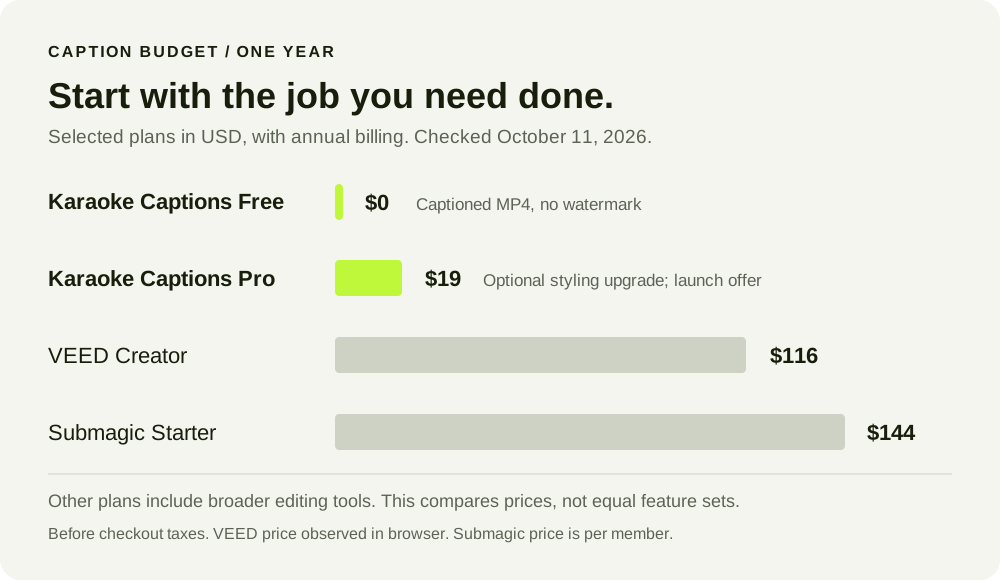
Selected annual plan costs, checked October 11, 2026. Pro is optional, its $19 price is a launch offer, and the other plans include broader editing features.
The video stays on your device
Karaoke Captions runs speech recognition and MP4 encoding in your browser. The first use needs to download the speech model; the video and transcription are processed locally. That architecture removes the need to charge for server transcription on each clip. The product's architecture notes explain the pipeline.
There is a tradeoff: your hardware does the work. A large file on a slow device can take longer or hit browser limits. “No minute quota” means the plan does not meter your minutes. It does not mean every phone can process an arbitrarily large video.
I like tools that keep files off a processing server when the task allows it. That same preference shows up in my browser-to-browser file transfer project. For readers interested in building this kind of product, I also offer web app development.
How to make word-by-word captions without a watermark
Word-by-word captions carry timing for individual words, so the visual highlight can follow the speech. A plain subtitle block usually gives you the phrase at once. The difference is in the timing and rendering, rather than simply choosing a louder font. Karaoke Captions' word-by-word guide explains the effect.
This is the workflow used for the test clip:
A walkthrough assembled from the actual test screenshots. Cursor movement and highlights illustrate the controls; this is not a recording of processing speed.
1. Choose your video and review the transcript
Open the tool and use Choose a video. Let transcription finish, then listen while reading the result. In the Captions tab, you can select a transcript line to correct text and use the timing controls when a word is out of sync.
The sample's words were transcribed into the expected sequence. Punctuation differed from the synthetic speech script, which is a useful reminder to proofread. A six-second English sample is evidence that this workflow worked, not an accuracy benchmark across accents, languages or noisy recordings.
2. Start with a free style
Open Styles, then choose Free. The checked editor showed two free presets: Classic and Lyrics. Classic was used for the sample export.
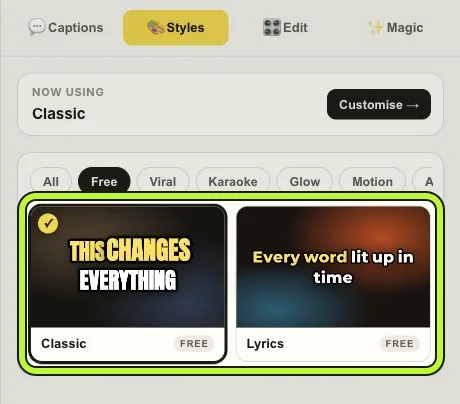
Choose a free preset when you want to test the whole workflow without buying Pro.
Use Edit to adjust the colors, font, size and placement. Preview the caption against both bright and dark parts of your actual footage. Leave enough room for the social app's buttons and description.
The editor also showed 90 additional Pro styles during this check. Pro's Magic tools include auto emoji, smart highlights and filler-word cleanup. The cleanup hides filler words from the captions; it leaves the audio untouched. If you want to remove pauses or spoken fillers from the recording itself, that is a separate editing job.
3. Export the format you need
Choose Export. For captions that are visible in the picture itself, select Export MP4. For a separate timed text file, choose .SRT or .VTT.
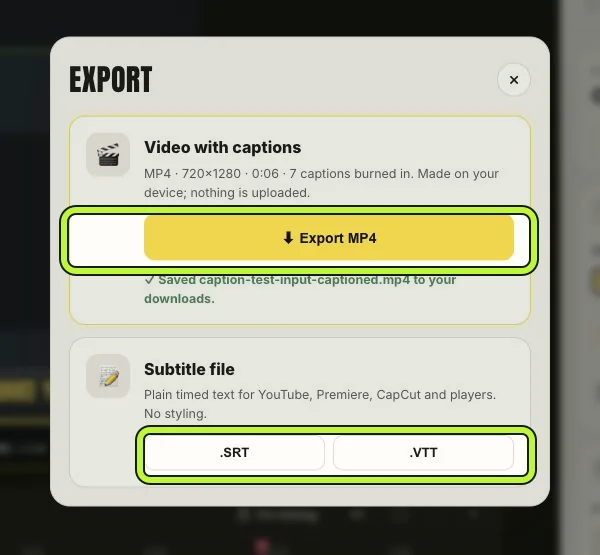
The checked dialog confirmed the MP4 was saved. Its SRT and VTT options download plain timed text.
Those formats solve different problems. The MP4 preserves the visual captions because they are burned into the video. The SRT and VTT files from this test contain text and timing, without the Classic font, color or karaoke animation.
For MP4 export, the product recommends desktop Chrome or Edge. Try a short clip first on your device before committing a long recording to the workflow. Keep the original video and play the exported file once before posting it.
When Submagic, CapCut, VEED or Captions is the better fit
Submagic: you also need to edit the footage
Submagic Starter includes auto captions, text-based trimming, B-roll and audio options. If those help you finish a video in one place, the subscription buys more than the caption layer. Its pricing page also makes the video count and duration limits visible before you subscribe.
My choice: Karaoke Captions for a finished clip; Submagic when the extra editing work is part of the job. Match the plan to your clip length, since Starter's checked limit is two minutes per video.
CapCut: you already have an editing workflow you like
CapCut's official auto-caption page advertises free caption generation and styling. If your version gives you the captions and export you need, staying in your existing editor may be the easiest option.
For a CapCut auto captions alternative, I would look at Karaoke Captions when I want a dedicated caption pass or local video processing. Check which CapCut features show a Pro badge in your own version before assuming that another person's free workflow applies to you.
VEED: you want captions inside a wider editor
The checked VEED Creator plan bundles auto subtitles with broader editing and media tools. That can be useful when captioning is one step in creating a video rather than the last step before posting it.
For captioning an already edited clip, the free Karaoke Captions workflow is the better value to me. For a project that uses VEED's wider tools, evaluate the whole project instead of comparing the caption price alone.
Captions: you want the app to create and edit more of the content
Captions Max lists AI editing, generation tools and 500 credits on its current iOS plan page. It also offers free tools, so this is not a comparison of its entire product with one paid tier.
If you want AI to do more of the production, those capabilities deserve a look. If your request is simply “put animated words on this video,” paying for that broader toolset may be unnecessary.
Questions about free caption generators and alternatives
Is there a free Submagic alternative with no watermark?
Yes. Karaoke Captions lets you export a captioned MP4 with Classic or Lyrics without a watermark, and the published free plan requires no account. The Chrome test in this post verified an MP4 export using Classic.
Is CapCut auto caption free?
CapCut advertises free automatic captions on its official tool page, and also has paid features. Availability and pricing can depend on your platform and region. Check the specific caption style and export in your installed version.
Can I export word-by-word captions as SRT?
You can download SRT from Karaoke Captions, but the test file contains grouped subtitle text and timestamps. It does not reproduce the animated word highlights. Export MP4 when you want the karaoke effect to travel with the video.
Does Karaoke Captions upload my video?
The product processes video and transcription locally in the browser, according to its architecture documentation. Downloading the speech model on first use is still an internet request. Local video processing should not be confused with a promise that the entire website makes no network requests.
What is the catch with unlimited free captions?
The free styles are Classic and Lyrics, while additional styles and Magic tools belong to Pro. Processing also depends on your device and browser. Test a short sample, proofread it, and check the exported file before using the tool for a larger project.
Which caption generator is the best value?
For my specific use case, an edited video that needs animated captions, I would start with Karaoke Captions Free. Pro is a low-cost styling upgrade if you want it. A broader editor can be better value when its extra tools replace work you would otherwise do elsewhere.
Try the caption step on one real clip. Open Karaoke Captions, choose Classic or Lyrics, correct the transcript, and export it. That finished file will tell you more than another feature checklist.
Research and drafting were AI-assisted. Prices were checked against official pages, and the screenshots and export files come from the test described above.