Supabase Slack notifications for signups and payments
Get Supabase signup and payment alerts in Slack. A practical walkthrough with working SQL, clear diagrams, secure secrets, and retry handling.
I added signup and payment alerts to three of my products: Karaoke Captions, floi.dev, and SalahClock. I wanted a message I could glance at and understand: who joined, which product they used, and whether a payment came through.
The setup uses Supabase to record the event and Slack to show it. Below is the signup version you can install first, followed by the extra step that makes payment alerts trustworthy. The full SQL is included, so you don't have to piece together a delivery worker from scattered snippets.
Here's how the signup alerts look in my Slack channel.
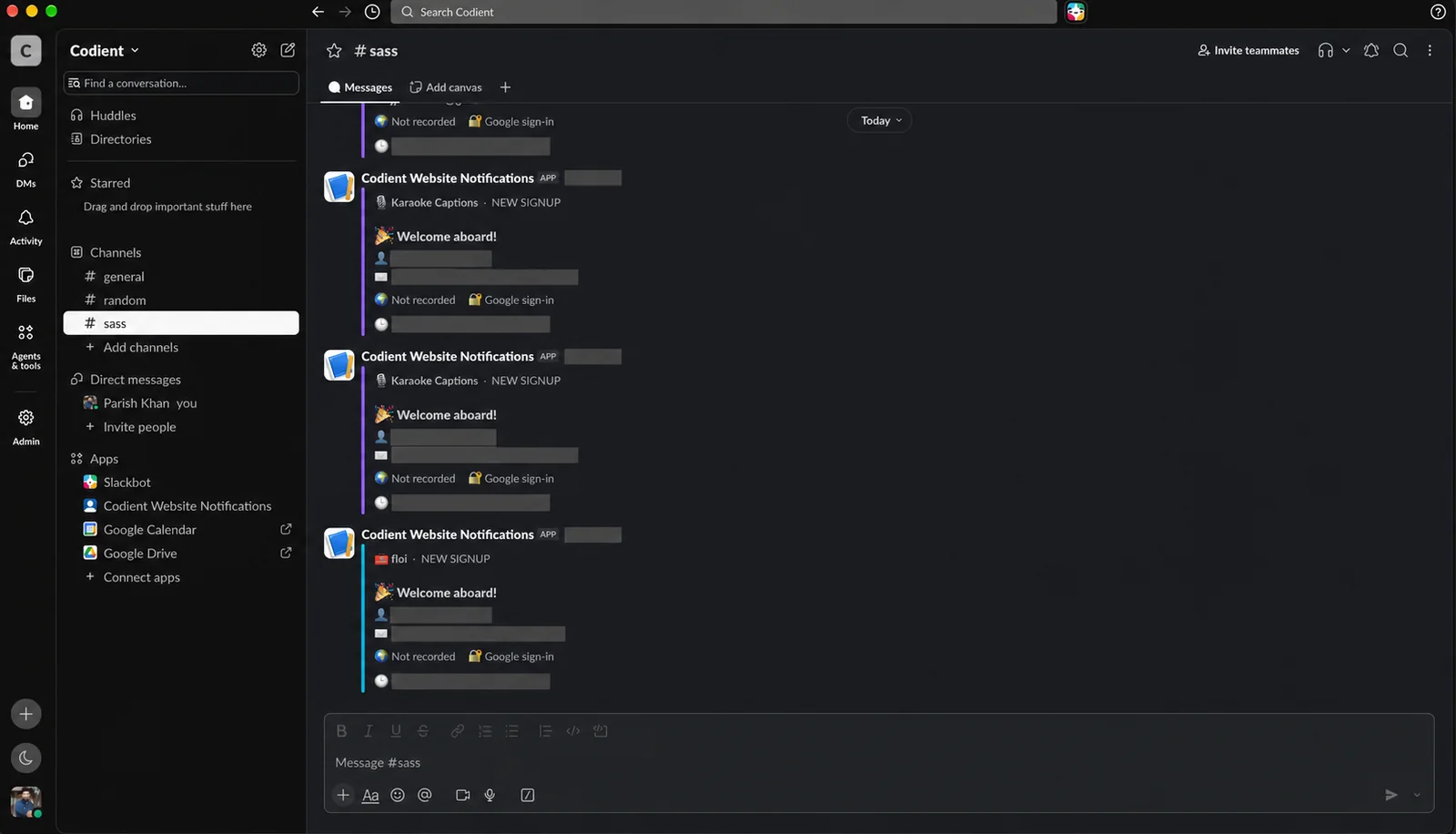
Edited screenshot from my Slack channel, with customer names, email addresses, and time labels hidden.
How I send Supabase Slack notifications
A signup creates a row in auth.users. A database trigger then adds a notification to a private table called an outbox. Think of it as a to-do list: this event happened, and Slack still needs to hear about it.
A scheduled job reads that list, sends the message, and checks Slack's response. If Slack is unavailable, the event stays on the list for another attempt.
Follow one event through the system. The animation uses example data and shows why a queued request still needs a delivery receipt.
The two extensions doing the work are pg_net, which sends HTTP requests after the transaction commits, and Supabase Cron, which schedules the sender. The trigger itself only writes to the database. It never waits for Slack to respond.
You'll need: a Supabase project with Auth working, permission to run SQL in it, and a Slack workspace where you can install an incoming webhook. If you're still setting up Auth, start with my Supabase and Next.js guide.
1. Choose where the alerts should go
I would start with a channel such as #product-activity. One channel can handle several products if each message names the product clearly.
- Create an app using From scratch and select your workspace.
- Open Incoming Webhooks and turn on Activate Incoming Webhooks.
- Click Add New Webhook to Workspace.
- Choose your channel and authorize the installation.
- Copy the webhook URL for the next step.
An incoming webhook is a private address that accepts a JSON message and posts it to your chosen channel. Anyone with the URL can use that posting access, so treat it like a password. Slack's incoming webhook guide covers the current setup screens.
Don't add a second Slack app if your project already has the right webhook. Reuse the destination and check for existing notification triggers before installing another sender.
2. Save the webhook in Supabase Vault
Open Vault in your Supabase project and add a secret with:
| Field | Value |
|---|---|
| Name | slack_webhook_url |
| Secret | The webhook URL you copied from Slack |
| Description | Signup and payment alerts |
Use Vault's interface to enter the actual URL. It doesn't belong in the SQL file, your Git history, or any NEXT_PUBLIC_* variable. Vault encrypts secrets on disk and lets the delivery function read them when it runs.
You can check that the secret exists without printing it:
select name
from vault.secrets
where name = 'slack_webhook_url';
Keep the vault, net, and notification schemas out of the Data API's exposed schemas. Vault encryption protects storage; database permissions protect access to the decrypted value. Supabase's pg_net permissions notes explain why queue access deserves the same care.
3. Install the signup trigger and sender
Download the signup SQL. It includes the outbox table, message formatter, signup trigger, retry logic, and scheduled job.
Try it in a test project first. This starter creates a new slack_alerts schema and one Auth trigger. If you already send signup notifications, adapt that route instead of enabling a second one.
To inspect the existing Auth triggers, run:
select tgname as trigger_name,
       tgfoid::regprocedure as handler
from pg_trigger
where tgrelid = 'auth.users'::regclass
  and not tgisinternal;
A trigger name alone won't tell you what it does. Open the handler definition and look for an existing Slack call or notification outbox.
Now open the downloaded file and change these settings in slack_alerts.message():
product text := 'Example SaaS';
team_timezone text := 'America/New_York';
time_label text := 'ET';
Use your product's name. Choose the time zone your team reads, and keep the short label consistent: for Pacific time, use America/Los_Angeles and PT. The named zone accounts for daylight saving time; a fixed UTC offset won't.
Paste the file into Supabase's SQL Editor and run it. The script enables pg_net and pg_cron, creates the private objects, and schedules one delivery check every minute.
Here's the part that prevents the same signup from being queued twice:
insert into slack_alerts.outbox (event_key, user_id, payload)
values (
  'signup:' || new.id,
  new.id,
  slack_alerts.message('signup', new.id, new.created_at)
)
on conflict (event_key) do nothing;
signup:<user ID> is unique. Updating the profile or signing in again doesn't create a new account, so those actions don't produce another signup alert. This starter skips anonymous accounts and accounts without an email. It announces account creation, which can happen before email verification.
The outbox has RLS enabled, no browser access, and functions with fixed search paths. Because the trigger runs inside the Auth transaction, a SQL error can still break a signup. That's why the first test should be an actual registration in a test project.
4. Get the first alert into Slack
Sign up once through your test app. Then check the outbox in the SQL Editor:
select event_key, attempts, delivered_at,
       last_status, last_error
from slack_alerts.outbox
order by created_at desc
limit 5;
You should see a row beginning with signup:. To send it now instead of waiting for the scheduled job, run:
select slack_alerts.deliver();
Run that as a separate SQL execution and let it commit. pg_net starts the HTTP request after the transaction finishes. Once the response arrives, the next call to deliver() records the outcome.
Success means both: a message appears in Slack, and the outbox eventually shows last_status = 200 with a populated delivered_at. A request ID on its own only means the request was queued.
The starter sends at most one new message per minute. That's intentionally conservative for a small app. A busy product will need a faster worker or grouped notifications; otherwise a burst of signups becomes a backlog.
5. Add payments after verification
Payments use the same outbox, but the event must come from your trusted server. The browser's checkout success page is useful feedback for the customer. It shouldn't decide whether money was received.
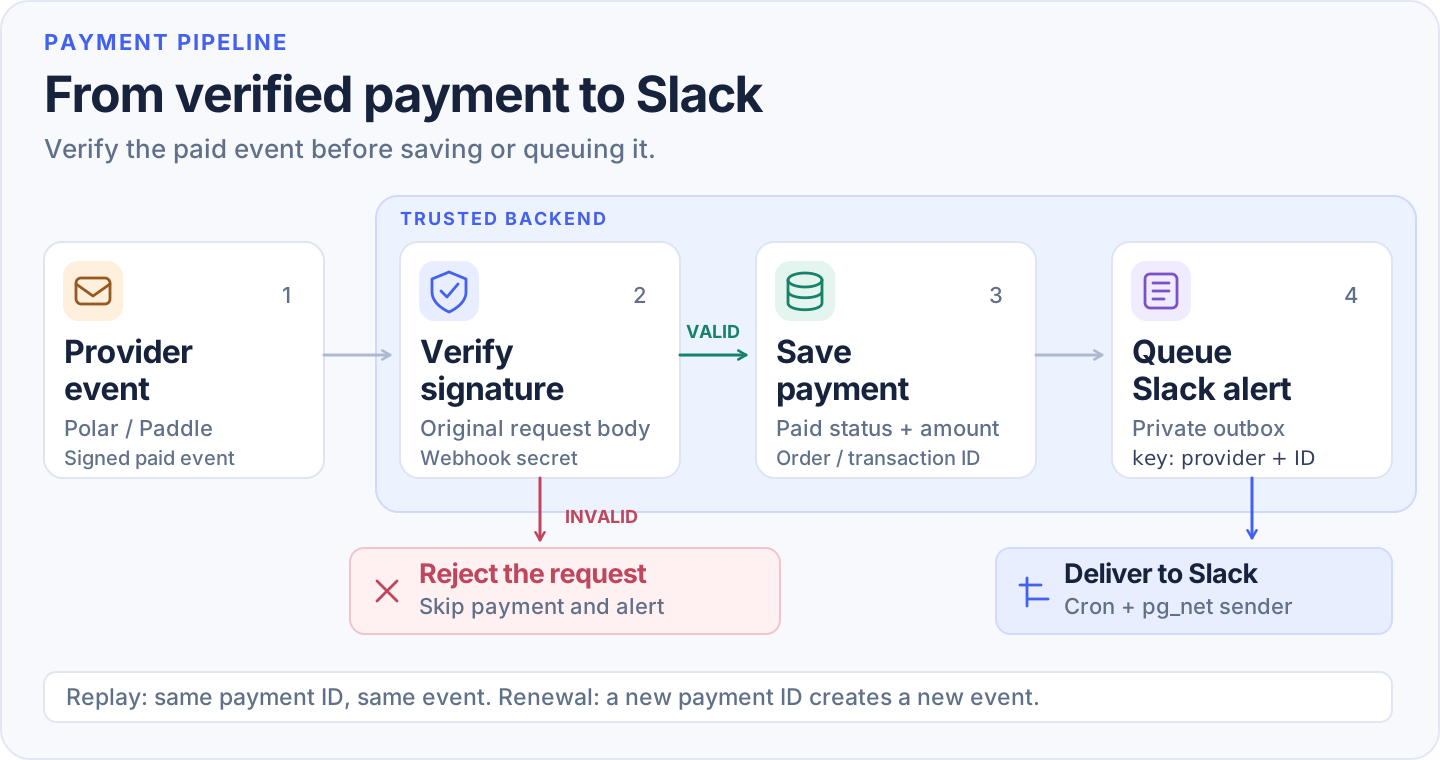
Signature verification happens before the database write and before Slack. A replay uses the same payment ID; a renewal uses a new one.
My two paid products take slightly different routes:
| Product | Verified payment source | Where the Slack event starts |
|---|---|---|
| Karaoke Captions | Polar's paid order | A server-only RPC after checking the order |
| SalahClock | Paddle's completed transaction | The confirmed payment row written by its webhook handler |
| floi.dev | No payment integration | Signup alerts only |
For your app, use the provider's SDK to verify the signature against the original request body, then check the paid event and amount. Follow Paddle's signature guide or Polar's verification example. Keep this logic in your existing payment handler.
Download the optional payment SQL and run it after the signup script. It adds queue_slack_paid_order, an RPC restricted to service_role. The example accepts positive USD amounts in cents; other currencies need matching amount formatting.
Call it from the verified handler after your normal payment record is saved:
// Server only. `payment` contains the verified provider data.
const { error } = await supabaseAdmin.rpc('queue_slack_paid_order', {
  p_provider: 'polar',
  p_order_id: payment.orderId,
  p_user_id: payment.userId,
  p_amount_cents: payment.amountCents,
  p_paid_at: payment.paidAt,
  p_country: payment.country ?? null,
});
if (error) throw error;
This is the handoff inside your existing verified handler, not a complete payment webhook endpoint. Keep the Supabase server key and provider secret on the server.
The unique key becomes payment:polar:<order ID> or payment:paddle:<transaction ID>. Use the order or transaction ID rather than the customer's email. The same purchase stays one event; a later purchase gets its own alert.
If your handler upserts the same payment on every replay, let it attempt the enqueue again. The unique key handles the repeat. A shortcut that exits just because the payment row already exists can lose an alert when the first enqueue failed.
Keep the message easy to read
I put the product and event at the top, followed by name, email, country, authentication provider, and time. A payment adds its amount and payment provider. Google sign-in and Polar payment are different fields because they answer different questions.
The starter uses Slack Block Kit with literal text for user values. A name containing <@everyone> stays a name instead of becoming a channel mention. Country comes from metadata you actually collect or a verified billing address. If you don't have it, show Not provided. Supabase Auth doesn't magically know a signup's country.
For time, the example keeps the database timestamp as timestamptz and formats it in the sender:
to_char(happened_at at time zone 'America/New_York',
        'Mon DD, YYYY')
|| ' at ' ||
to_char(happened_at at time zone 'America/New_York',
        'FMHH12:MI AM')
|| ' ET'
That produces a label such as Oct 12, 2026 at 2:15 PM ET. Include the zone so someone in another state doesn't have to guess.
What happens when Slack is unavailable?
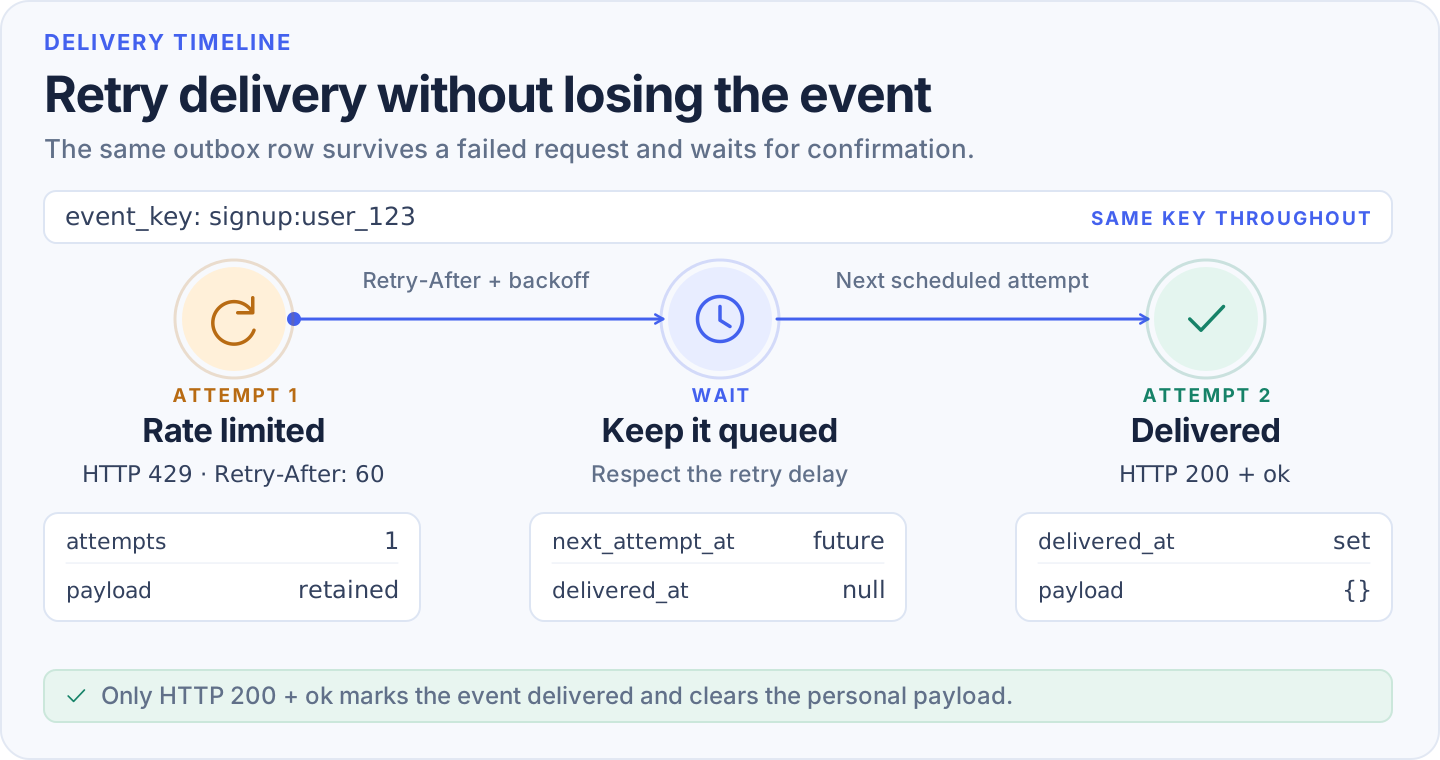
The event stays the same. Only its delivery attempt changes.
The SQL starter retries timeouts, server errors, and rate limits. For a 429, it respects Slack's Retry-After header. It stops after 12 attempts, and a bad webhook or malformed payload needs a fix rather than endless retries.
After success, it clears the outbox's message payload. Unsent payloads expire after 30 days. The event key remains for deduplication. Slack still retains the posted message according to your workspace's retention settings, so choose a channel whose members should see customer details.
One limit matters: Slack incoming webhooks don't give this example an exactly-once delivery guarantee. If Slack accepts a message but the response is lost, retrying may post it again. Unique keys prevent ordinary event replays from creating new work; they can't remove that network uncertainty.
If the channel stays quiet, follow the event instead of changing everything:
| What you see | Where to look next |
|---|---|
| No outbox row | The Auth trigger, account type, and handler definition |
Row exists, attempts is 0 | Vault secret name and the Cron job |
| Request sent, no result yet | net._http_response, using the row's request_id |
last_status is 400, 403, or 404 | Message JSON, webhook permissions, or a disabled destination |
last_status is 429 | Retry delay and the number of apps posting to the channel |
I tested the original three-project setup with synthetic events and saw Slack accept the messages. Replaying a payment ID didn't create a second event, and no real card was charged. The downloadable starter was also checked in a local PostgreSQL engine for signup behavior, permissions, US time formatting, payment deduplication, and retries. Its HTTP and Cron dependencies were simulated, so test the live delivery in your own project before relying on it.
For a small product, this is enough to make the activity visible without another dashboard to watch. I would keep billing records in the payment system and treat Slack as the convenient heads-up. If you want help wiring it into an existing app, that's part of my Supabase development work.